1. Introducción1. Introduction
TableForge es un plugin para AutoCAD que inserta rangos de Excel como geometría nativa: las celdas se convierten en líneas (LINE), rellenos (HATCH) y texto (MTEXT) agrupados dentro de un bloque. No son imágenes: todo es editable en tu dibujo.TableForge is an AutoCAD plugin that inserts Excel ranges as native geometry: cells become lines (LINE), fills (HATCH) and text (MTEXT) grouped inside a block. They aren't images: everything is editable in your drawing.
Cada tabla guarda un vínculo al archivo y rango de origen, de modo que puedes refrescarla cuando la hoja cambie — sin necesidad de tener Excel abierto.Each table stores a link to its source file and range, so you can refresh it whenever the sheet changes — without needing Excel open.
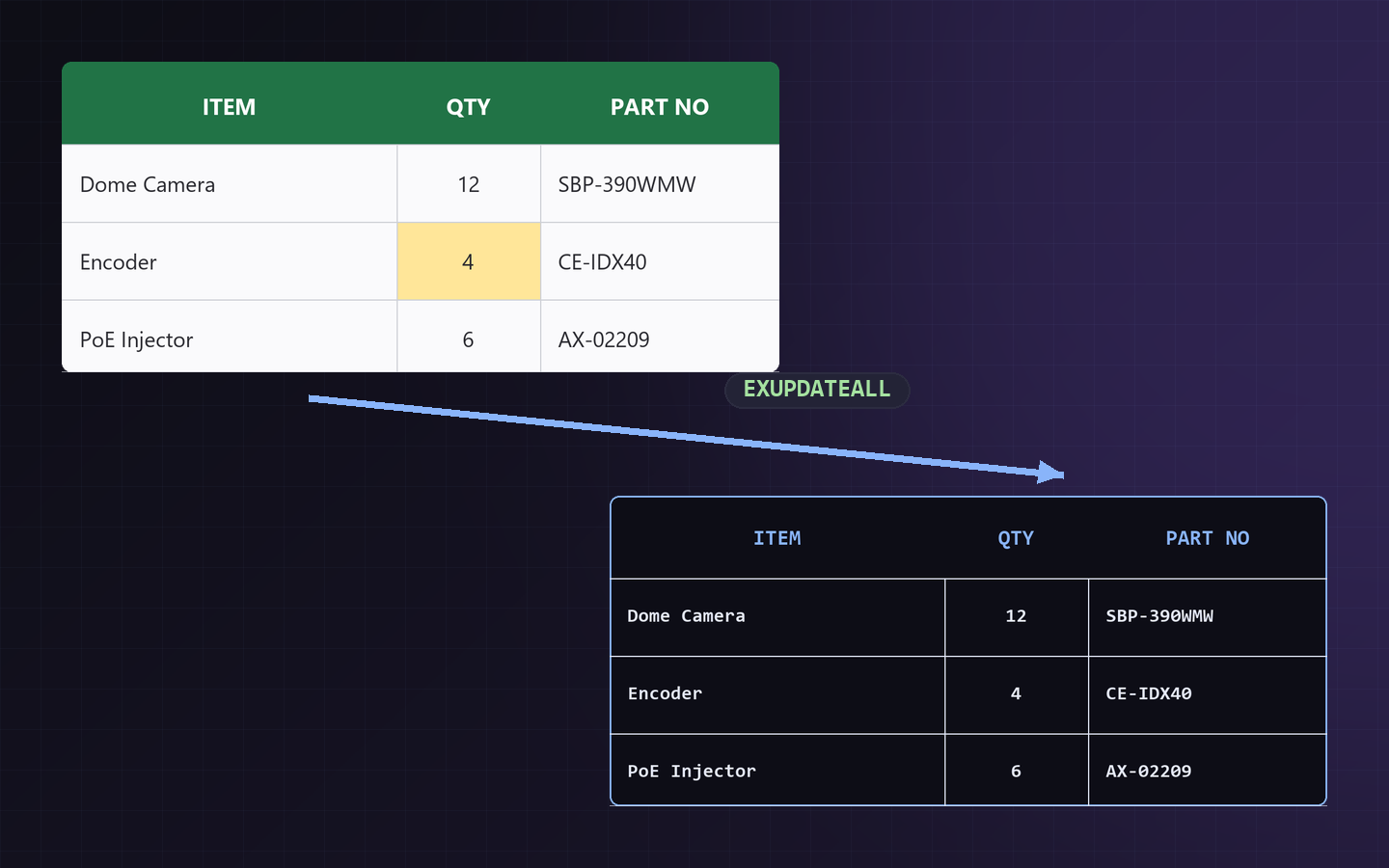
El flujo, en un vistazoThe workflow at a glance
 EXCOPY
 EXWATCH
 EXUPDATEALL
2. Instalación y requisitos2. Installation & requirements
- AutoCAD: 2025 o 2026 (Windows). AutoCAD 2024 y anteriores no son compatibles (usan un runtime .NET más antiguo).AutoCAD: 2025 or 2026 (Windows). AutoCAD 2024 and earlier are not supported (they run an older .NET runtime).
- Runtime: .NET 8.Runtime: .NET 8.
- Excel: no se necesita para actualizar. La lectura de archivos
.xlsxusa ClosedXML. (Solo se usa Excel vía COM al copiar la selección activa, ver §3.)Excel: not required to refresh. Reading.xlsxfiles uses ClosedXML. (Excel is only used via COM when copying the active selection, see §3.)
- Instala el bundle de TableForge (App Store de Autodesk o el instalador del paquete). AutoCAD lo carga al arrancar.Install the TableForge bundle (Autodesk App Store or the package installer). AutoCAD loads it at startup.
- Verás un banner de inicio en la línea de comandos con la lista de comandos
EX*y aparecerá la pestaña/panel de TableForge en el ribbon.You'll see a startup banner in the command line listing theEX*commands, and the TableForge tab/panel appears in the ribbon.
3. Inicio rápido — insertar una tabla3. Quick start — insert a table
- En Excel, selecciona el rango de celdas que quieres (puedes seleccionar varios rangos con Ctrl+clic).In Excel, select the range of cells you want (you can select several ranges with Ctrl+click).
- En AutoCAD, ejecuta
EXCOPY. TableForge lee la selección activa de Excel.In AutoCAD, runEXCOPY. TableForge reads the active Excel selection. - Si seleccionaste varios rangos, elige cómo insertarlos: una sola tabla combinada (lado a lado) o tablas separadas (apiladas).If you selected multiple ranges, choose how to insert them: one merged table (side by side) or separate tables (stacked).
- Indica el punto de inserción en el dibujo. La tabla se dibuja como un bloque (nombre
XL_aaaammdd_hhmmss) en la capaTABLEFORGE.Pick the insertion point in the drawing. The table is drawn as a block (namedXL_yyyymmdd_hhmmss) on theTABLEFORGElayer.
EXUPDATE para refrescar la tabla más adelante sin necesidad de tener Excel abierto.after inserting, use EXUPDATE to refresh the table later without needing Excel open.4. Cómo se dibuja4. How it's drawn
- Geometría real: bordes como
LINE, fondos de celda comoHATCHy contenido comoMTEXT.Real geometry: borders asLINE, cell fills asHATCH, and content asMTEXT. - Agrupado en un bloque: toda la tabla es una referencia de bloque, fácil de mover y escalar.Grouped in a block: the whole table is a single block reference, easy to move and scale.
- Capa propia: se crea/usa la capa
TABLEFORGEpara que las tablas se ploteen correctamente (las tablas antiguas enEXCELTOCADse migran al actualizar).Its own layer: theTABLEFORGElayer is created/used so tables plot correctly (older tables onEXCELTOCADare migrated on refresh). - Formato conservado: celdas combinadas, bordes, alineación, negrita/cursiva, ajuste de texto y texto rotado (cabeceras a 90° o apiladas) se reproducen tal como en Excel. Los colores de celda se omiten por defecto (blanco y negro); actívalos con
EXCOLORS.Formatting preserved: merged cells, borders, alignment, bold/italic, text wrap and rotated text (90° or stacked headers) reproduce just like Excel. Cell colors are skipped by default (black & white); enable them withEXCOLORS.
5. Vincular y actualizar5. Link & refresh
Cada tabla guarda en sus datos extendidos (Xdata) la ruta del archivo, la hoja, el rango y la escala. Cuando cambie el Excel:Each table stores the file path, sheet, range and scale in its extended data (Xdata). When the Excel changes:
EXUPDATE— selecciona un bloque de tabla y se redibuja desde el Excel.select a table block and it's redrawn from Excel.EXUPDATEALL— refresca todas las tablas del dibujo, incluyendo las de los layouts (no solo el Model Space).refreshes every table in the drawing, including those in layouts (not just Model Space).EXOPEN— selecciona una tabla y se abre su Excel de origen. Si el libro ya está abierto, TableForge activa esa ventana en la hoja vinculada.select a table and its source Excel opens. If the workbook is already open, TableForge brings that window to front on the linked sheet.
EXUPDATE / EXUPDATEALL te ofrecen buscar la nueva ubicación; al elegirla, se revinculan todas las tablas que apuntaban a ese archivo.If the linked Excel is no longer where it was saved, EXUPDATE / EXUPDATEALL offer to browse for the new location; once picked, every table pointing at that file is relinked..xlsx con ClosedXML, incluso si Excel tiene el archivo abierto.the Excel path is stored relative to the DWG, so the link keeps working even if you move the project folder (OneDrive, Google Drive, etc.). Refresh reads the .xlsx with ClosedXML, even when Excel has the file open.6. Vigilancia en vivo (EXWATCH)6. Live watch (EXWATCH)
La vigilancia de los archivos Excel vinculados está activada por defecto: al abrir un dibujo, TableForge empieza a observar sus libros vinculados sin que hagas nada. EXWATCH la desactiva o reactiva, y tu elección se recuerda entre sesiones. Usa un FileSystemWatcher basado en eventos, por lo que no consume CPU mientras está inactivo. Cuando detecta un cambio, te avisa en la línea de comandos (de forma segura, sin congelar AutoCAD) sugiriendo ejecutar EXUPDATEALL.Monitoring of the linked Excel files is on by default: when you open a drawing, TableForge starts watching its linked workbooks with no action needed. EXWATCH turns it off or back on, and your choice is remembered across sessions. It uses an event-driven FileSystemWatcher, so it consumes no CPU while idle. When it detects a change, it notifies you on the command line (safely, without freezing AutoCAD) suggesting you run EXUPDATEALL.
7. Varias hojas a la vez — EXCONFIG + EXCOPYALL7. Many sheets at once — EXCONFIG + EXCOPYALL
EXCOPYALL inserta muchas hojas de golpe en un solo dibujo. La idea: primero defines unas reglas en EXCONFIG (qué hojas tomar y de qué rango); luego EXCOPYALL abre un Excel, busca las hojas que cumplen esas reglas, te deja acomodarlas en una cuadrícula y las inserta todas — cada una vinculada para poder refrescarlas con EXUPDATEALL.EXCOPYALL inserts many sheets at once into a single drawing. The idea: you first define rules in EXCONFIG (which sheets to take and from what range); then EXCOPYALL opens an Excel file, finds the sheets that match those rules, lets you arrange them in a grid, and inserts them all — each one linked so you can refresh them with EXUPDATEALL.
7.1 · EXCONFIG — definir qué hojas y qué rango7.1 · EXCONFIG — define which sheets and what range
Ejecuta EXCONFIG y verás una lista de reglas. Cada fila es una regla que dice: «de las hojas que coincidan con este patrón, toma este rango de celdas». Tus reglas se guardan en tu equipo (%AppData%\TableForge\config.json) y sirven para todos tus dibujos.Run EXCONFIG and you'll see a list of rules. Each row is a rule that says: "from the sheets that match this pattern, take this cell range." Your rules are saved on your machine (%AppData%\TableForge\config.json) and apply across all your drawings.
| Description | Pattern / Sheet Name | Regex? | Range | Named? |
|---|---|---|---|---|
| Battery Calculation sheet | BattCalc | ☐ | A1:H289 | ☐ |
| Numbered N-sheets (1_N1, 3_N2…) | \d+_N\d+ | ☑ | A1:Q46 | ☐ |
| Numbered N-sheets (N1, N2…) | N\d+ | ☑ | A1:Q46 | ☐ |
| Device list (auto-grows) | Devices | ☐ | DeviceList | ☑ |
Qué significa cada columna:What each column means:
| ColumnaColumn | Para qué sirveWhat it's for |
|---|---|
| Description | Una etiqueta libre para que tú identifiques la regla. No afecta al emparejamiento; pon lo que quieras.A free label so you can recognize the rule. It does not affect matching; write whatever helps you. |
| Pattern / Sheet Name | El criterio para elegir hojas. Con Regex? apagado, es el nombre exacto de una hoja (p. ej. BattCalc). Con Regex? encendido, es una expresión regular que se busca dentro del nombre de cada hoja.The criterion for picking sheets. With Regex? off, it's the exact sheet name (e.g. BattCalc). With Regex? on, it's a regular expression searched inside each sheet's name. |
| Regex? | El interruptor entre los dos modos de arriba. En ambos casos no distingue mayúsculas/minúsculas (battcalc = BattCalc).The switch between the two modes above. Both modes are case-insensitive (battcalc = BattCalc). |
| Range | El rango de celdas que se importa de cada hoja que coincida (p. ej. A1:H289). Todas las hojas de esa regla usan el mismo rango.The cell range imported from each matching sheet (e.g. A1:H289). Every sheet caught by that rule uses the same range. |
| Named? | Con esta casilla encendida, la columna Range ya no es un rango A1 sino el nombre de un rango con nombre de Excel (p. ej. DeviceList). La gran ventaja: si el rango con nombre crece o encoge en Excel (agregas filas a la lista), la tabla se redimensiona sola en el siguiente EXUPDATEALL — sin tocar la regla.With this box checked, the Range column is no longer an A1 range but the name of an Excel named range (e.g. DeviceList). The big win: if the named range grows or shrinks in Excel (you add rows to the list), the table resizes itself on the next EXUPDATEALL — no rule changes needed. |
Patrones (regex) explicados con el ejemploPatterns (regex) explained with the example
Una expresión regular busca una forma de texto, no un texto fijo. En el ejemplo de arriba:A regular expression looks for a shape of text, not a fixed string. In the example above:
| PatrónPattern | Coincide con hojas como…Matches sheets like… |
|---|---|
BattCalc (sin regex)(no regex) | solo la hoja llamada exactamente BattCalc.only the sheet named exactly BattCalc. |
\d+_N\d+ | 1_N1, 3_N2, 12_N5 — dígitos, un guion bajo _, una N, más dígitos.digits, an underscore _, an N, then more digits. |
N\d+ | N1, N2, N10 — una N seguida de dígitos.an N followed by digits. |
Mini-chuleta de regex:Regex mini cheat-sheet:
\d— un dígito (0–9).a digit (0–9).+— «uno o más» del elemento anterior (\d+= uno o más dígitos)."one or more" of the previous item (\d+= one or more digits)..— cualquier carácter;.*= cualquier cosa.any character;.*= anything.^yand$— inicio y fin del nombre.^N\d+$exige que todo el nombre seaN+dígitos (asíN1coincide peroPlanN1no).start and end of the name.^N\d+$requires the whole name to beN+digits (soN1matches butPlanN1doesn't).- Sin anclas, el patrón coincide si aparece en cualquier parte del nombre.Without anchors, the pattern matches if it appears anywhere in the name.
1_N1 encaja tanto en \d+_N\d+ como en N\d+, pero como \d+_N\d+ está más arriba, esa regla se la lleva. Coloca arriba las reglas más específicas.Each sheet is taken by the first rule that matches it; afterwards it's ignored by the rest. In the example, 1_N1 matches both \d+_N\d+ and N\d+, but since \d+_N\d+ is higher up, that rule wins it. Put the most specific rules at the top.- Add / Remove — añade o quita reglas. ↑ / ↓ cambian la prioridad.Add / Remove — add or remove rules. ↑ / ↓ change priority.
- Gap entre tablas — separación por defecto (en unidades de dibujo) que se sugerirá al acomodar las tablas en el siguiente paso.Gap between tables — the default spacing (in drawing units) suggested when you arrange the tables in the next step.
- Save & Close guarda las reglas (solo las que tienen patrón y rango). Cancel descarta los cambios.Save & Close saves the rules (only those with both a pattern and a range). Cancel discards changes.
7.2 · EXCOPYALL — insertar todas las hojas7.2 · EXCOPYALL — insert all the sheets
- Elige el archivo Excel. Se abre un diálogo para seleccionar el
.xlsx/.xlsm.Pick the Excel file. A dialog opens to choose the.xlsx/.xlsm. - Emparejamiento automático. TableForge recorre las hojas del archivo y aplica tus reglas. Si no hay reglas, avisa «Ejecuta EXCONFIG primero»; si ninguna hoja coincide, «Revisa EXCONFIG». Si hay coincidencias, lista los nombres encontrados.Automatic matching. TableForge scans the file's sheets and applies your rules. If there are no rules it says "Run EXCONFIG first"; if nothing matches, "Check EXCONFIG". On matches, it lists the sheet names found.
- Organiza las tablas (ventana «Organizar tablas»). Cada hoja aparece como una tarjeta (con su nombre y rango). Arrástralas para ordenarlas; usa «+ Nueva fila» para crear filas (las filas se insertan una debajo de otra en el dibujo, y dentro de cada fila van de izquierda a derecha). La casilla «Incluir» de cada tarjeta permite dejar fuera alguna hoja. Ajusta Espaciado H (entre tablas de una fila) y V (entre filas).Arrange the tables ("Organize tables" window). Each sheet shows as a card (with its name and range). Drag them to reorder; use "+ New row" to create rows (rows are placed one below another in the drawing, and within a row they go left to right). Each card's "Include" checkbox lets you leave a sheet out. Set Spacing H (between tables in a row) and V (between rows).
- Punto de inserción. Indica la esquina superior-izquierda en el dibujo.Insertion point. Pick the top-left corner in the drawing.
- Inserción. Se dibujan fila por fila: dentro de una fila, de izquierda a derecha con el Espaciado H; al terminar una fila, baja según la tabla más alta más el Espaciado V. Cada tabla es un bloque independiente con su vínculo, así que
EXUPDATEALLlas refresca todas.Insertion. They're drawn row by row: within a row, left to right with Spacing H; after a row, it moves down by the tallest table plus Spacing V. Each table is its own linked block, soEXUPDATEALLrefreshes them all.
EXCONFIG = define las reglas una vez · EXCOPYALL = elige Excel → empareja → acomoda → inserta · EXUPDATEALL = mantén todo sincronizado.EXCONFIG = define the rules once · EXCOPYALL = pick Excel → match → arrange → insert · EXUPDATEALL = keep everything in sync.8. Escala, unidades y formato8. Scale, units & format
| ComandoCommand | Qué haceWhat it does |
|---|---|
EXSCALE | Cambia la escala de una tabla seleccionada. Ejecuta EXUPDATE para redibujarla.Changes the scale of a selected table. Run EXUPDATE to redraw it. |
EXUNITS | Alterna entre Imperial (pulgadas) y Métrico (mm).Toggles between Imperial (inches) and Metric (mm). |
EXSPACING | Ajusta los multiplicadores de espaciado de columnas y filas. Aplica con EXUPDATEALL.Adjusts the column and row spacing multipliers. Apply with EXUPDATEALL. |
EXTEXTHEIGHT | Define la altura del texto de las tablas.Sets the text height of the tables. |
EXFORMAT | Fuente, altura y estilo de borde de la tabla.Font, height and border style of the table. |
EXCOLORS | Activa/desactiva la reproducción de los colores y rellenos de celda de Excel (apagado por defecto: las tablas se dibujan en blanco y negro). Al cambiarlo, redibuja las tablas existentes.Toggles reproduction of Excel cell colors and fills (off by default — tables are drawn black & white). Redraws existing tables when toggled. |
EXUPDATE (una tabla) o EXUPDATEALL (todas) para que se aplique a las tablas ya insertadas.After changing a global formatting option, run EXUPDATE (one table) or EXUPDATEALL (all) so it applies to already-inserted tables.9. El ribbon completo9. The full ribbon
Al cargar el bundle, TableForge añade su pestaña al ribbon con seis paneles. Cada botón ejecuta un comando EX* (también puedes escribirlo en la línea de comandos). La interfaz está en inglés.When the bundle loads, TableForge adds its tab to the ribbon with six panels. Each button runs an EX* command (you can also type it on the command line). The interface is in English.
InsertTable
 Insert
All Sheets
 Configure
Sheets
 Table
TableList
 Update
Selected
UpdateAll
 Check
CheckLinks
 Export
to Excel
Openin Excel
 Scale
Scale Units
Units Spacing
 Format
Table
 Insert
Images
 Insert
Charts
WatchFiles
 License
| BotónButton | ComandoCommand | Qué haceWhat it does |
|---|---|---|
| Insert | ||
| Insert Table | EXCOPY | Inserta la selección activa de Excel como tabla nativa (ver §3).Inserts the active Excel selection as a native table (see §3). |
| Insert All Sheets | EXCOPYALL | Inserta varias hojas según las reglas de configuración (ver §7).Inserts many sheets per the configuration rules (see §7). |
| Configure Sheets | EXCONFIG | Define las reglas de hoja/rango para «Insert All Sheets» (ver §7).Defines the sheet/range rules for "Insert All Sheets" (see §7). |
| Table List | EXLIST | Abre una lista de todas las tablas TableForge del dibujo; doble clic o «Zoom To» selecciona y hace zoom a una tabla.Opens a list of every TableForge table in the drawing; double-click or "Zoom To" selects and zooms to a table. |
| Update | ||
| Update Selected | EXUPDATE | Refresca la tabla seleccionada desde su Excel.Refreshes the selected table from its Excel. |
| Update All | EXUPDATEALL | Refresca todas las tablas del dibujo (Model y layouts).Refreshes every table in the drawing (Model & layouts). |
| Check Links | EXCHECKLINKS | Revisa cada tabla e informa si su Excel de origen está accesible, en un formulario con código de color (OK / falta).Checks each table and reports whether its source Excel is reachable, in a color-coded form (OK / missing). |
| Export | ||
| Export to Excel | EXEXPORT | Lee los datos vinculados a una tabla seleccionada y los exporta a un nuevo archivo .xlsx.Reads the data linked to a selected table and exports it to a new .xlsx file. |
| Open in Excel | EXOPEN | Selecciona una tabla y abre su Excel de origen; si el libro ya está abierto, activa esa ventana en la hoja vinculada.Select a table and it opens its source Excel; if the workbook is already open, that window is brought to front on the linked sheet. |
| Format | ||
| Scale | EXSCALE | Cambia la escala de una tabla (luego EXUPDATE).Changes a table's scale (then EXUPDATE). |
| Units | EXUNITS | Imperial (pulgadas) / Métrico (mm).Imperial (inches) / Metric (mm). |
| Spacing | EXSPACING | Multiplicadores de espaciado de filas/columnas (luego EXUPDATEALL).Row/column spacing multipliers (then EXUPDATEALL). |
 Format Table Format Table | EXFORMAT | Fuente, altura de texto y estilo de borde (ver §8).Font, text height and border style (see §8). |
| Media | ||
| Insert Images | EXIMAGES | Extrae las imágenes estáticas incrustadas en la hoja activa y las inserta como imágenes nativas. 100% offline (ClosedXML).Extracts the static images embedded in the active sheet and inserts them as native raster images. 100% offline (ClosedXML). |
| Insert Charts | EXCHART | Exporta los gráficos de la hoja activa a PNG y los inserta como imágenes. Requiere el libro abierto en Excel (los gráficos no se pueden renderizar sin Excel).Exports the active sheet's charts to PNG and inserts them as images. Requires the workbook open in Excel (charts can't be rendered without Excel). |
| Tools | ||
| Watch Files | EXWATCH | Activa/desactiva la vigilancia de los Excel vinculados (ver §6).Toggles monitoring of the linked Excel files (see §6). |
| License | EXLICENSE | Gestiona la licencia/activación de TableForge.Manages your TableForge license/activation. |
 Contact Contact | EXCONTACT | Abre la ventana de soporte/contacto (correo y aviso de respuesta en 5 días hábiles).Opens the support/contact window (email and 5-business-day reply notice). |
EXTEXTHEIGHT, que fija la altura del texto, y EXCOLORS, que activa/desactiva la reproducción de los colores de Excel (apagado por defecto — pregunta Yes/No y la elección se guarda). Ambos también están disponibles como opciones dentro de Format Table (EXFORMAT).There are two keyboard-only commands: EXTEXTHEIGHT, which sets the text height, and EXCOLORS, which toggles reproduction of Excel colors (off by default — it asks Yes/No and the choice is saved). Both are also available as options inside Format Table (EXFORMAT).10. Solución de problemas10. Troubleshooting
| SíntomaSymptom | Causa / soluciónCause / fix |
|---|---|
| Los cambios del Excel no aparecen al actualizarExcel changes don't show after refreshing | Casi siempre es porque el Excel no se ha guardado. TableForge lee el archivo .xlsx tal como está en el disco, así que si editaste la hoja pero no la guardaste, EXUPDATE / EXUPDATEALL seguirán mostrando los valores anteriores. Guarda primero el Excel (Ctrl+S) y vuelve a actualizar.Almost always because the Excel hasn't been saved. TableForge reads the .xlsx file exactly as it is on disk, so if you edited the sheet but didn't save it, EXUPDATE / EXUPDATEALL will keep showing the old values. Save the Excel first (Ctrl+S), then refresh again. |
EXCOPY no encuentra la selecciónEXCOPY can't find the selection | Excel debe estar abierto con un rango seleccionado. EXCOPY lee la selección activa por COM.Excel must be open with a range selected. EXCOPY reads the active selection via COM. |
| «Source file not found» al actualizar"Source file not found" on refresh | El .xlsx se movió o renombró. EXUPDATE / EXUPDATEALL te ofrecen buscar la nueva ubicación y revinculan todas las tablas de ese archivo. (El vínculo se guarda relativo al DWG, así que mover la carpeta completa del proyecto no lo rompe.)The .xlsx was moved or renamed. EXUPDATE / EXUPDATEALL offer to browse for the new location and relink every table using that file. (The link is stored relative to the DWG, so moving the whole project folder doesn't break it.) |
EXUPDATEALL no toca una tablaEXUPDATEALL skips a table | Ese bloque no tiene vínculo de TableForge (Xdata). Solo se actualizan las tablas insertadas por la herramienta.That block has no TableForge link (Xdata). Only tables inserted by the tool are updated. |
| La tabla no se ploteaThe table won't plot | Revisa que la capa TABLEFORGE esté activa/imprimible. EXUPDATE migra a esa capa las tablas antiguas (capa EXCELTOCAD).Check that the TABLEFORGE layer is on/plottable. EXUPDATE migrates older tables (on the EXCELTOCAD layer) to it. |
| Importar gráficos de ExcelImporting Excel charts | Para gráficos, el archivo debe estar abierto en Excel. Las imágenes estáticas (PNG/JPG) se importan de todos modos.For charts, the file must be open in Excel. Static images (PNG/JPG) import regardless. |